

A seasonal event needs the whole game to look different for a few weeks: buildings, items, characters, UI, the lobby and the post that announces it. The fastest way to keep all of that consistent is to approve one reskin plan on one hero asset, then chain five prompts that apply the same plan everywhere: seasonal reskin, outfit change, lighting change, icon set and announcement post.
Key takeaways
- Plan first, generate second. Approve a reskin plan on one hero asset before touching the rest.
- Every later step gets the first approved reskin as a reference. That's what makes it one event, not ten.
- Change what exists instead of drawing new art: costumes on existing characters, new light on existing scenes.
- Save the plan as a skill and next year's event starts from it.
- In Genie, the plan, the references and your characters live in one place, so the whole team reskins to the same rules.
Why does this matter for LiveOps?
In a live game, the calendar is the product. Themed events are some of the most reliable moments in the year, and also some of the first to get cut in planning, because the art list is long and the window is fixed. An event you can make in days is a test. One that takes a quarter is a bet you can't lose. This workflow is about making it the first kind.
How do you reskin for an event, step by step?
Step 1: Approve a reskin plan on one hero asset
Pick the asset players see most, often the main building or the lobby. Run Seasonal reskin, but first ask Genie's agent for a plan: which elements change, which themed details get added, which colors shift. Approve the plan, then the reskin. This approved pair is the reference for everything else.
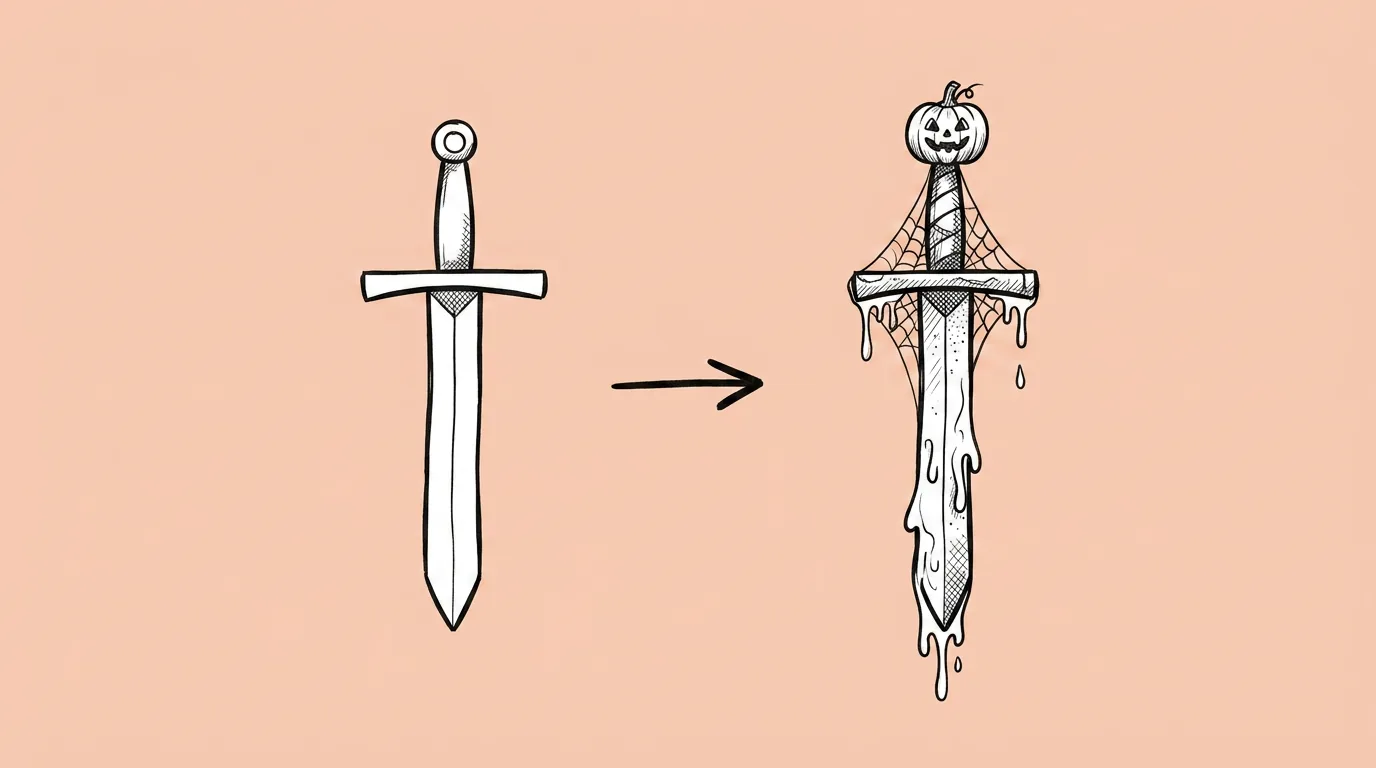 PromptSeasonal reskin →
Step 2: Put the cast in costume
Run Outfit change on each event character. Describe the costume specifically (material, color, key pieces) and keep pose, face and background the same. Ask for several costumes in one request if you want options for the event's store bundle.
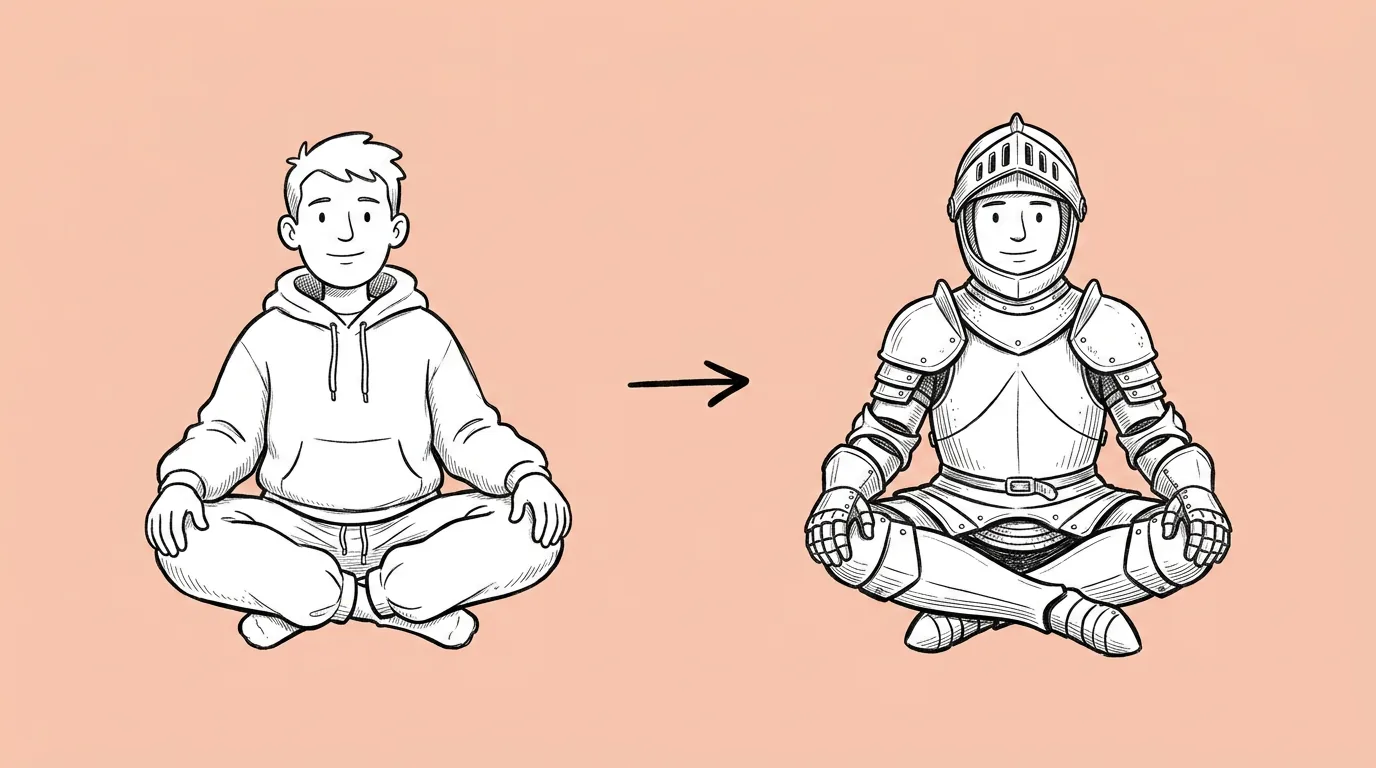 PromptOutfit change →
Step 3: Change the light, not the art
For a night event or a golden-hour summer, run Lighting change on existing scenes. Name the light source and direction, like "moonlight from the upper right, every window glowing warm". The scene stays. The mood changes.
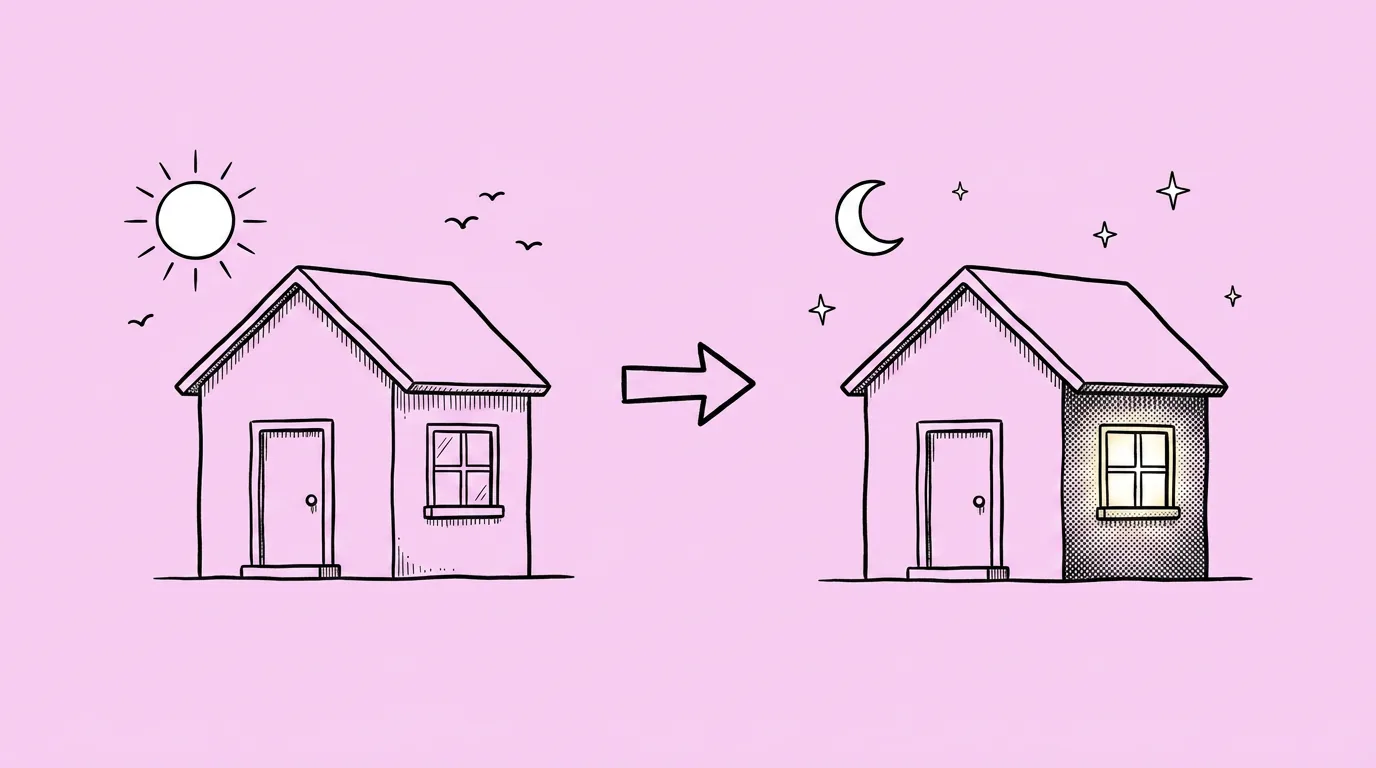 PromptLighting change →
Step 4: Make the event's icons
Run Icon set for rewards, boosters and event currency, with your style picked by @ and the step 1 reskin attached as the reference for palette. Check every icon at 64px, then cut them out in one go with Batch remove background.
 PromptIcon set →
Step 5: Announce it
Run Announcement post with the reskinned hero asset and a costumed character, headline under six words. Then run Resize for every platform so every channel gets its format on launch day.
 PromptAnnouncement post →
Prompts in this guide
The event at a glance
| Step | Prompt | What changes | Reference to attach |
|---|---|---|---|
| 1 | Seasonal reskin | Hero asset gets the theme | Approved plan |
| 2 | Outfit change | Characters get costumes | Step 1 reskin for palette |
| 3 | Lighting change | Scenes get the event's light | Original scenes |
| 4 | Icon set | Rewards and currency | Step 1 reskin |
| 5 | Announcement post | Launch creative, every format | Steps 1 and 2 |
What goes wrong, and how do you avoid it?
- The theme is too light. A pumpkin sticker on a building isn't an event. The plan in step 1 should change materials and details, not only add props.
- The theme is too heavy. If players can't recognize their own buildings, ask the agent to keep the silhouette and change surfaces only.
- Assets don't match. Always attach the step 1 reskin. Without it, each asset gets its own interpretation of "Halloween".
The honest read: AI won't decide what your event is about. The theme, the story and the offer are still your team's calls. What it removes is the reason good event ideas get cut: too many assets for the window.
Where does Genie fit?
Genie holds the pieces that make an event consistent: your characters and styles behind @, the approved plan saved as a skill, and the canvas where the first reskin becomes the reference for the rest. One system across the store, the meta, CRM and social, so the event looks like one event everywhere players meet it.
FAQ
How many assets can one plan cover?
+
As many as the event needs. Run them in batches with the step 1 reskin attached each time.
Can I reuse this for next year's event?
+
Yes. Save the plan and references as a skill. Next year starts from a working plan instead of a blank page.
What about the event's card album or offers?
+
See How to build a collectible card album and How to create and test in-game offer art.