

A card album is 12 to 20 cards that must look like one set, plus rarity tiers and reward icons, delivered before the event goes live. To build one with AI, chain five steps: set the album's look, generate the cards in batches from one approved card, add rarity through materials, make the reward icons, then cut everything out. The first approved card is the reference for every card after it.
Key takeaways
- Lock the look before the content. Palette, light and atmosphere first, then what's on each card.
- Approve one card, then use it as the reference for every batch. That's what holds a 20-card album together.
- Keep frames, names and rarity badges in your UI, not in the generated art.
- Rarity reads best through materials and glow, not through a new design per tier.
- In Genie, the album's look saves as a skill, so the next album starts from a working system.
How do you build an album, step by step?
Step 1: Set the album's look
If the album needs a new look, start from a mood board image and run Style reference on one test subject. Tell the agent what to borrow (palette, lighting, texture) and what to ignore. If the album uses your game's existing style, skip this step and pick the style with @.
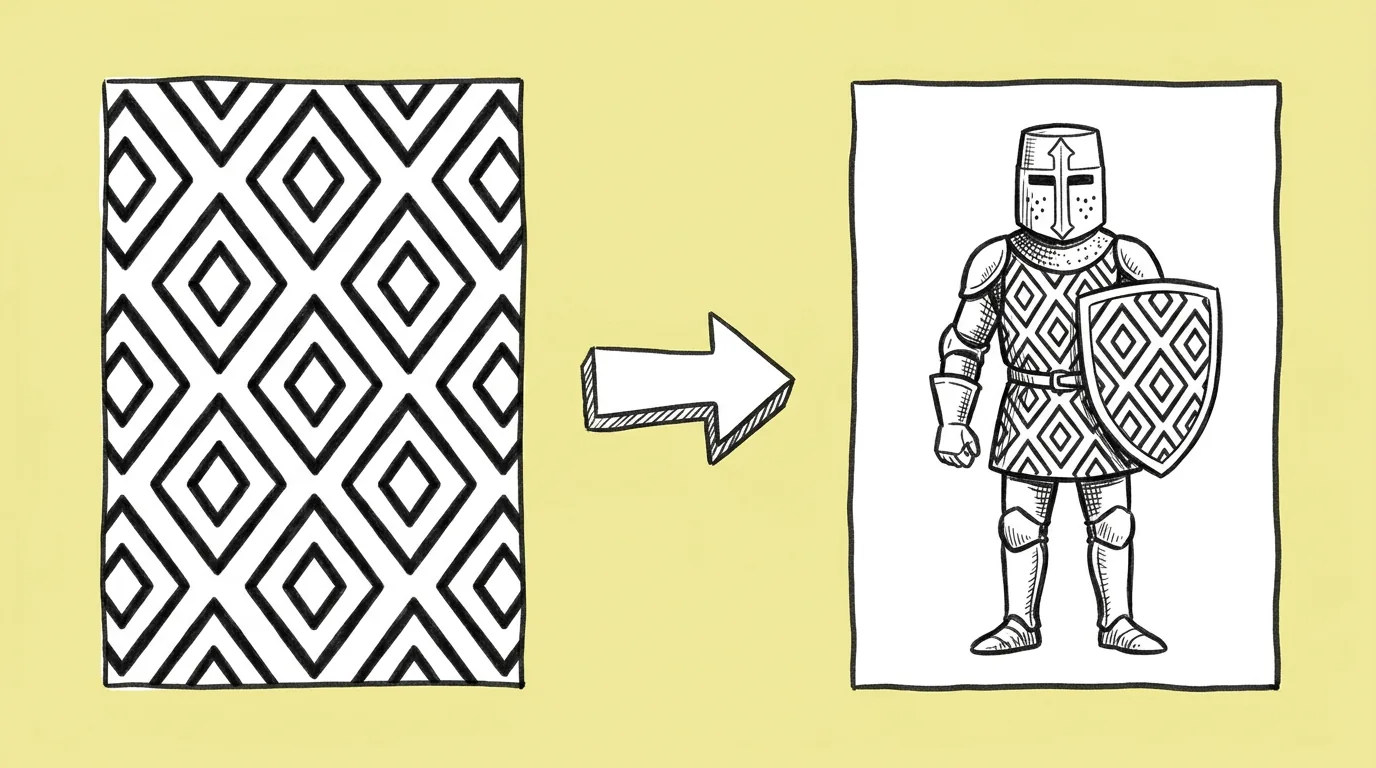 PromptStyle reference →
Step 2: Approve one card, then generate the rest in batches
Run Themed card set for the first batch of about nine. Spell out palette and lighting, list what goes on each card, and set your frame's ratio. Approve the best card, click it on the canvas to add it as the reference, and run the remaining cards in batches with it attached.
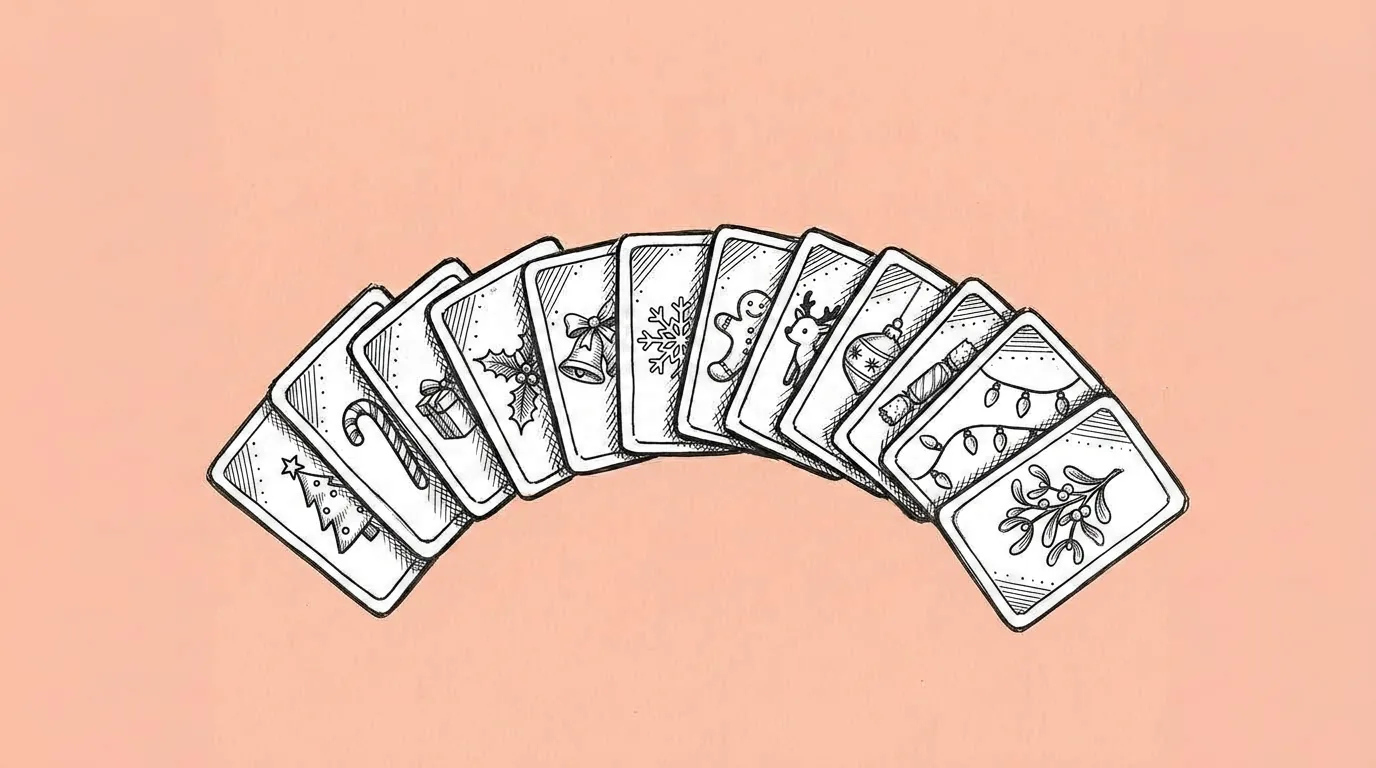 PromptThemed card set →
Step 3: Add rarity
For gold or legendary cards, run Material variants on the approved cards: same art, richer materials, more glow. Players should spot the rare card in the grid without reading the badge.
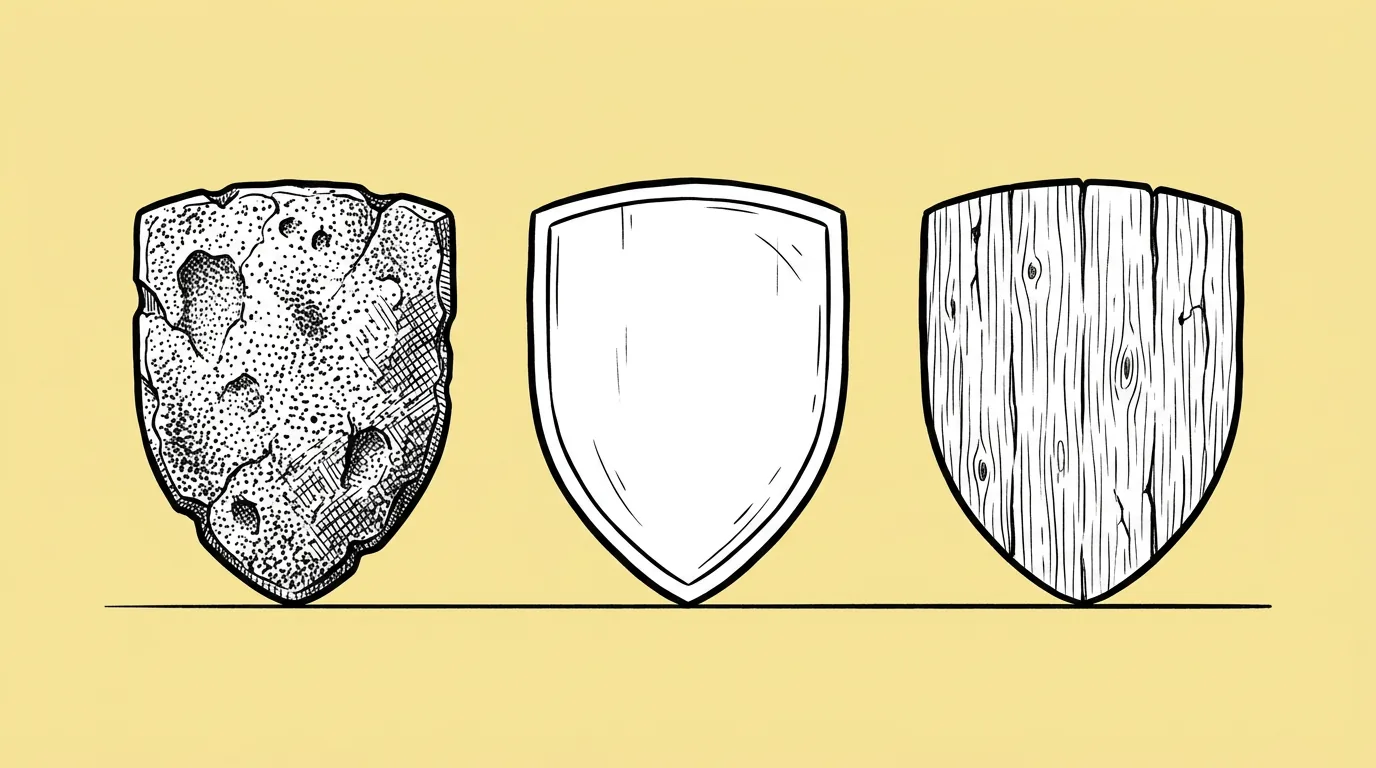 PromptMaterial variants →
Step 4: Make the reward icons
Albums come with rewards for completing sets. Run Icon set for chests, packs and completion rewards, with an approved card attached for palette.
 PromptIcon set →
Step 5: Cut out and hand off
Run Batch remove background on the icons and any card elements that sit on UI. Check glow and particle effects by eye before shipping.
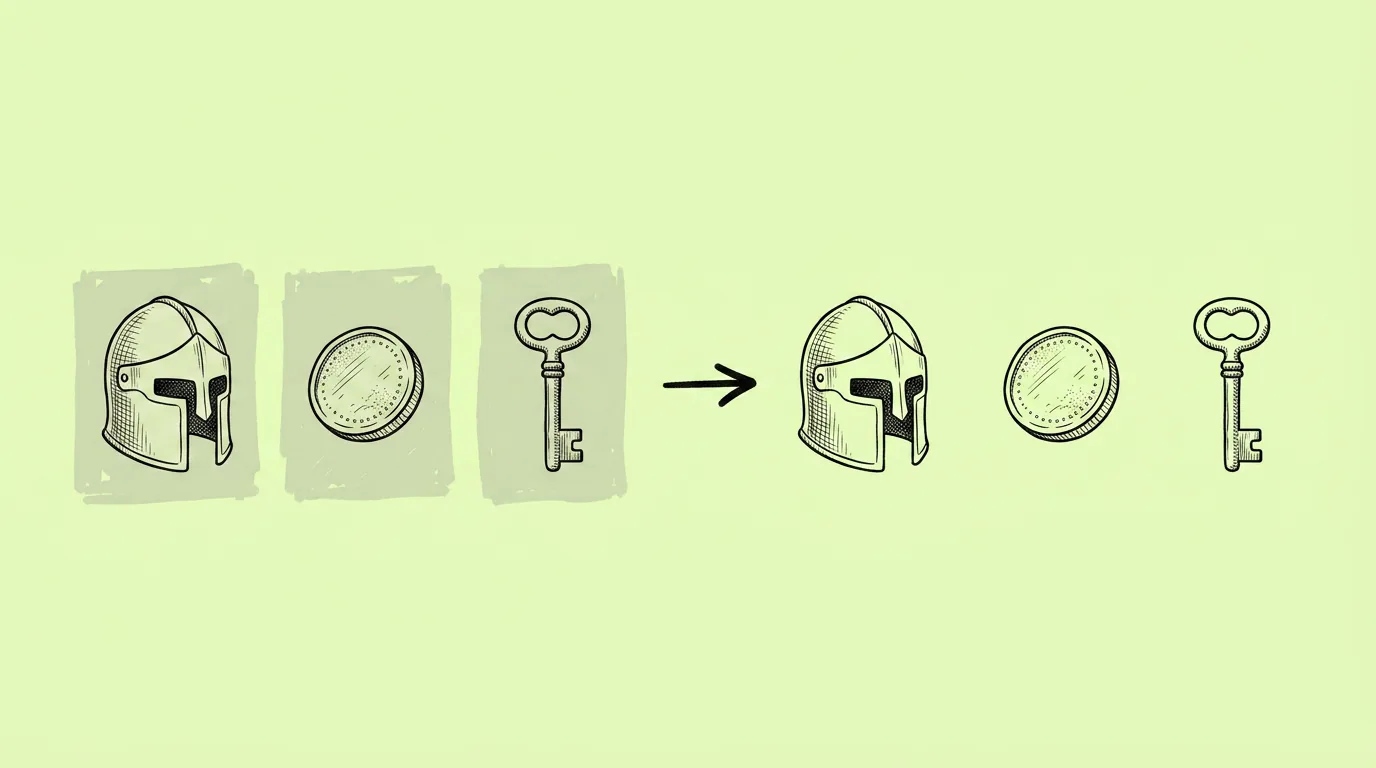 PromptBatch remove background →
Prompts in this guide
The album at a glance
| Step | Prompt | Output | Reference |
|---|---|---|---|
| 1 | Style reference (or @ style) | The album's look | Mood board image |
| 2 | Themed card set | 12 to 20 cards | First approved card |
| 3 | Material variants | Rarity versions | Approved cards |
| 4 | Icon set | Reward icons | An approved card |
| 5 | Batch remove background | UI-ready cut-outs | All of the above |
What goes wrong, and how do you avoid it?
- Later cards drift. Batches without the approved card attached slowly lose the atmosphere. Attach it every time.
- Frames vary. Generated frames never match exactly. Put the frame in your UI.
- Rarity is unclear. If common and rare look alike at card size, push the material and glow harder in step 3.
The honest read: the album's theme and which cards are rare are design decisions that drive the feature's economy. This workflow handles the art. Your team still owns the collection design.
Where does Genie fit?
Albums repeat. A new one every few weeks, each with its own theme, each with the same structure. Genie keeps the structure: the album's look as a skill, your characters behind @, the approved card as the reference on the canvas. The next album starts from a working system instead of a blank brief.
FAQ
Can the cards feature my own characters?
+
Yes. Call them with @ in the card list.
How many cards per batch?
+
Around nine keeps quality even. Run more batches with the approved card attached.
Can I reuse the look for the event's other art?
+
Yes. Use the approved card as the reference in Art pack, and see How to reskin your game for a seasonal event.