
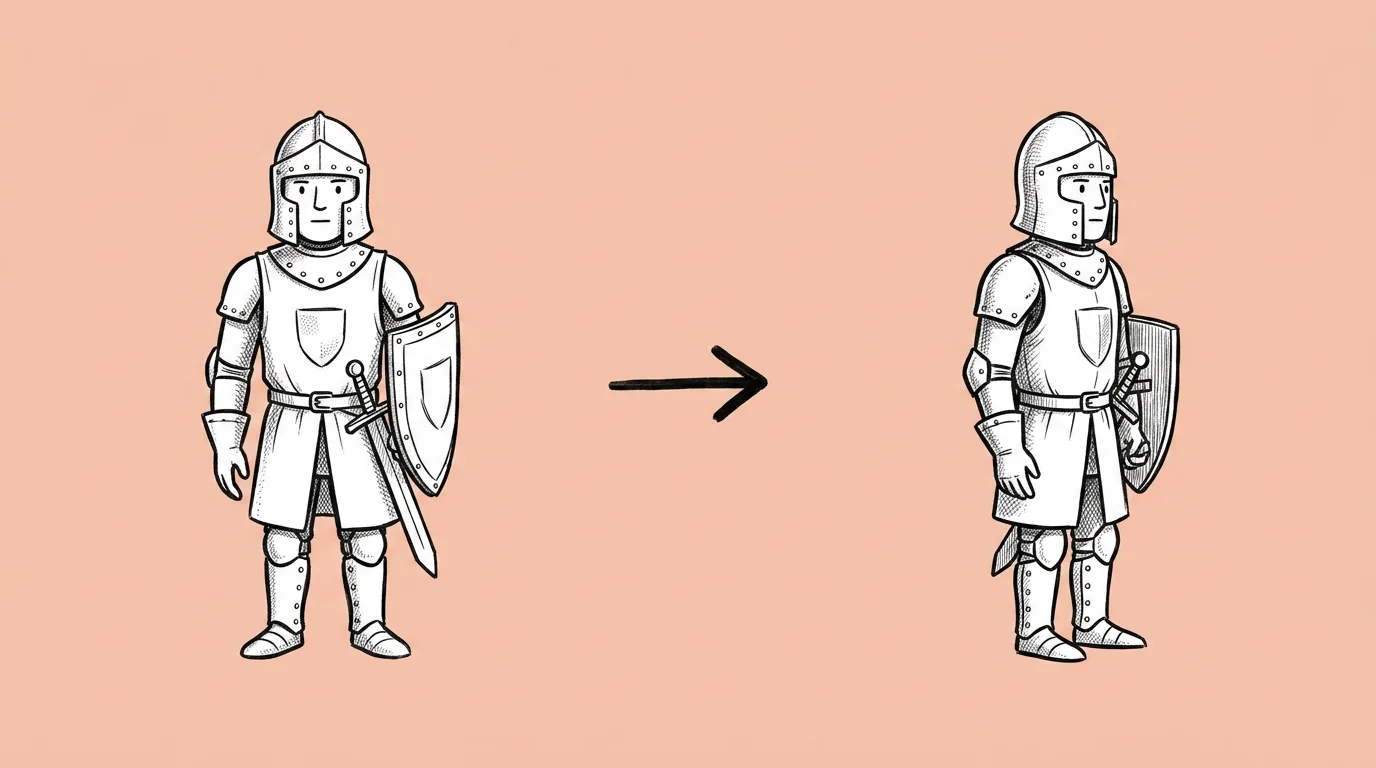
What to fill in
| Bracket | What to put | Example |
|---|---|---|
| [new angle] | The view you need, as specific as you can. | "a low angle from the front left, looking up at the castle gate" |
When do you use it?
When the art exists from one angle and the placement needs another. The lobby scene is eye level and the map needs top-down. The key art is wide and the ad wants a dramatic low angle. Redrawing a scene for a new camera is a full job. Moving the camera shouldn't be.
What breaks, and how do you fix it?
The design changes along with the angle. Parts the camera didn't see in the original get invented.
- Pick an angle close to the original. Small moves keep the best fidelity. A full turn to the back means inventing what was never shown.
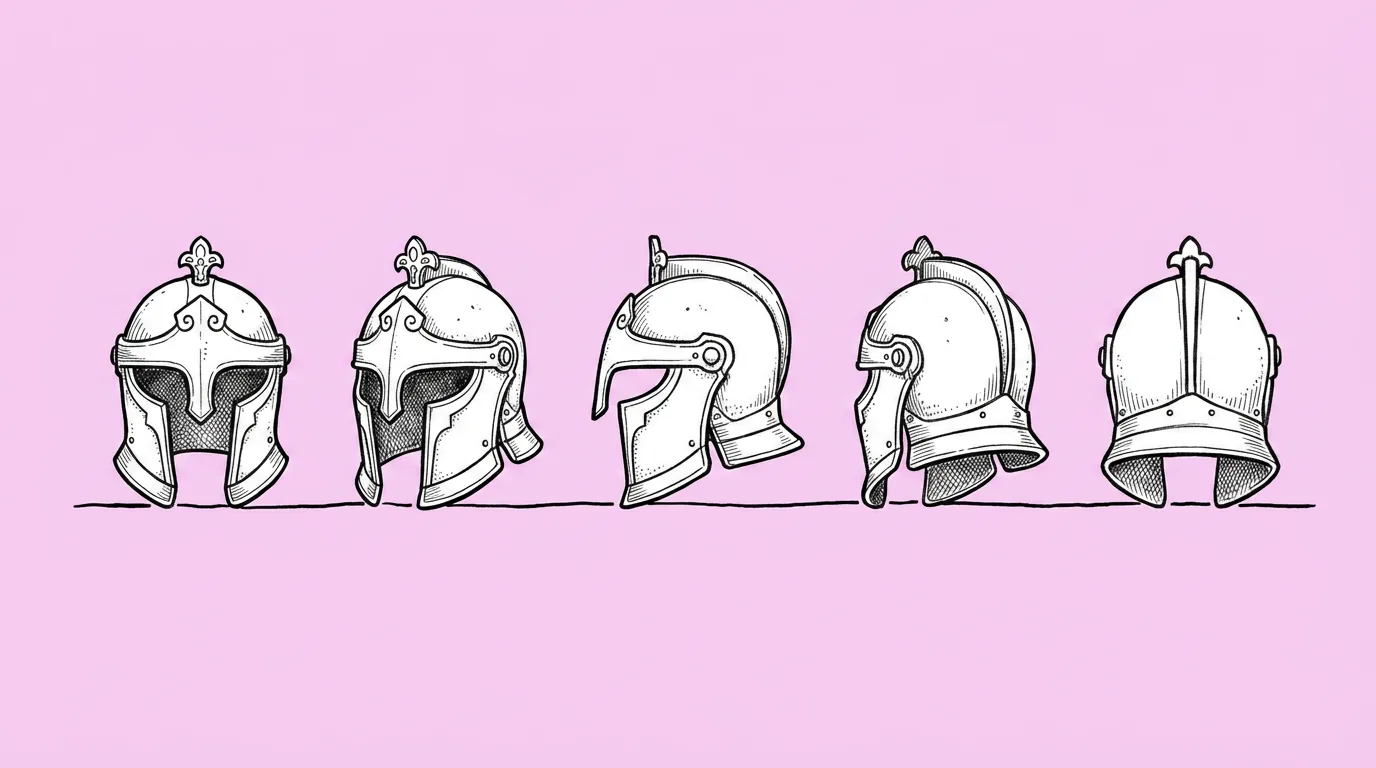
- Attach a turnaround if you have one. It gives the model the views it would otherwise guess.
- For precise control, use the camera angle app. Sliders set rotation, tilt and zoom, so you dial in the exact view rather than describe it.
Variations to try
Using the attached image, change the camera to a top-down view, keeping every building in the same place and style.
Using the attached image, move the camera closer to the character, chest-up framing, slightly low angle, same background.
FAQ
Prompt or camera angle app?
+
Use the prompt for a described view ("top-down", "low angle"). Use the app when you need exact rotation, tilt and zoom.
Can it show the back of a scene?
+
It can, but anything the original didn't show is invented. Attach a turnaround or extra views for accuracy.
Does it work on single assets?
+
Yes. For a full set of angles of one asset, Asset turnaround is faster.