
What to fill in
| Bracket | What to put | Example |
|---|---|---|
| [asset short description] | What the sketch shows, in a few words. | "a treasure chest with a dragon lock" |
| [style] | Your game's style, picked with @. | @Kingdom painted style |
When do you use it?
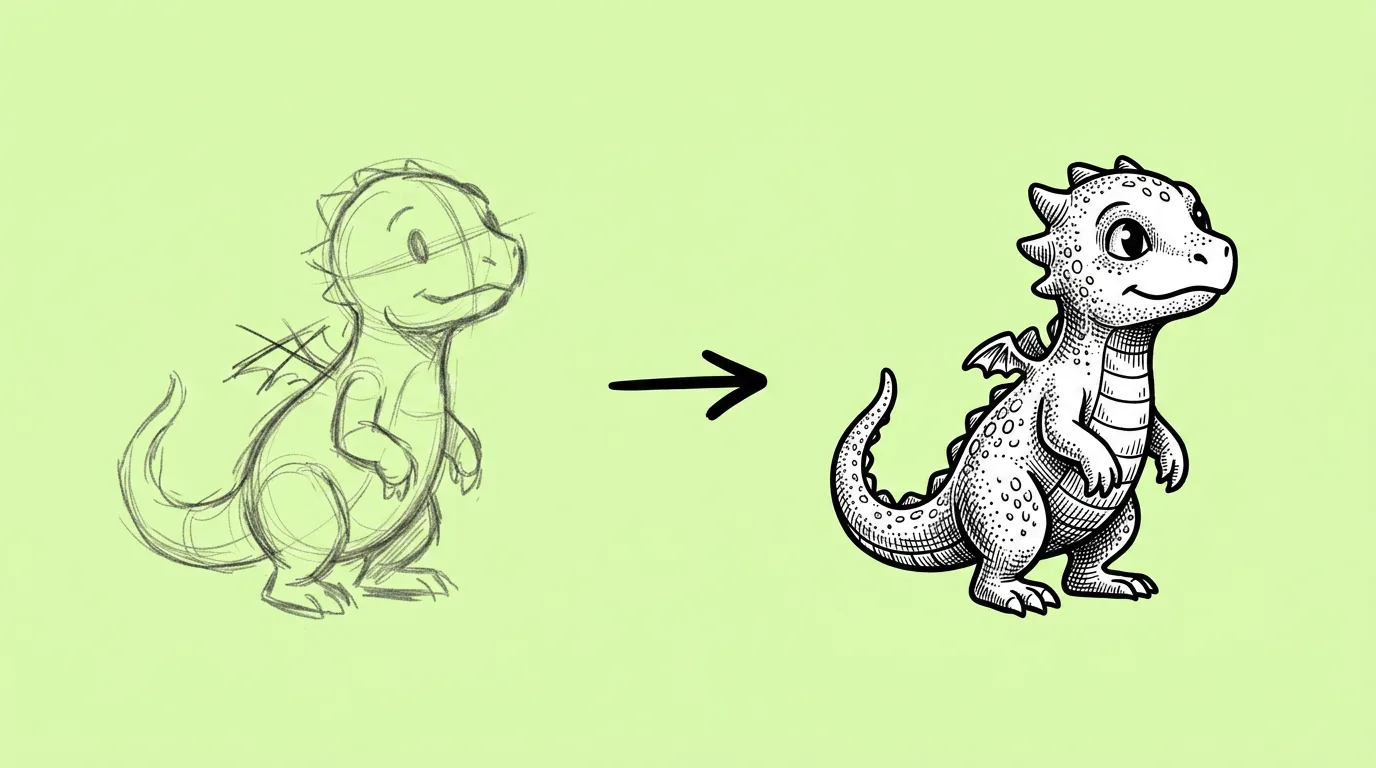
When the idea is approved and the finish isn't there yet. The art director signed off on the sketch. The event needs the asset this week. Or a pitch needs to show what the feature will look like, not what it might look like.
This keeps the artist's decisions (shape, composition, the idea) and takes over the slowest part: the render.
What breaks, and how do you fix it?
The model tries to improve the sketch. Silhouette and proportions shift, extra details appear, and the style drifts when no style is set.
- Pick your game's style with @. Without a style, the model picks one for you.
- Start from clean line art. Messy scribbles give the model room to invent.
- Test a few models. Some stay much closer to your lines than others. Compare image models runs them side by side.
The honest read: the closer the sketch is to final, the closer the render is to what you meant.
Variations to try
Render the attached sketch of [asset] in @[style]. Keep the silhouette and proportions exactly as drawn. Don't add details that aren't in the sketch.
Render the attached sketch of [asset] three times: in @[style A], @[style B] and @[style C].
FAQ
Does it work with rough thumbnails?
+
It works, but the model will fill gaps with its own choices. For production assets, clean line art gives you much more control.
Can I render in a style that isn't saved in Genie?
+
Yes. Attach a style image and use Style reference, or describe the style in words.
Does it replace the artist?
+
No. The artist makes the sketch and the calls. The prompt handles the render, so the artist spends time on the next idea.